How to send workout data from Zwift and TrainingPeaks to Apple Health without an Apple Watch nor Strava
I recently registered for a gravel race that I will travel to later this year. To get ready for that race, a few weeks ago I started a new structured training program.

This is also the same program I followed to prepare for the 2023 Belgian Waffle Ride BC. It's a shame that event is no longer taking place. Thanks for nothing, American "Democracy".
I pay for TrainingPeaks Premium and prefer to use Apple Health to centrally store my data rather than putting it in different places. It's my data and I want to control who has access to it, and to be able to revoke that privilege at any moment.
My indoor cycling program takes place in Zwift, so there's another piece in the puzzle. Thankfully, Zwift easily connects to TrainingPeaks.
Last time I trained for BWR BC, I still used Strava and as such, data was sent there from TrainingPeaks. It also showed up in Apple Health. That system worked.
The problem is, I don't use Strava anymore. I've been on and off with Strava for almost 10 years now. It's complicated but overall, Strava is just not for me.
By taking Strava out of the picture, I immediately discovered a hole in my previous process.
Workout data from TrainingPeaks was not showing up in Apple Health. Strava had been quietly filling that gap.
So, what to do?
Curious to find solutions that didn't require Strava nor buying a $400 Apple Watch, I tried turning on different settings and experimenting with various processes. I poked around in TrainingPeaks and Apple Health but that data simply wasn't moving to where I wanted it to go.
After some searching, I came across RunGap which is a data broker that sends and receives information between TrainingPeaks and Apple Health. That's just the beginning: RunGap supports a multitude of other platforms. Maybe this was my solution?
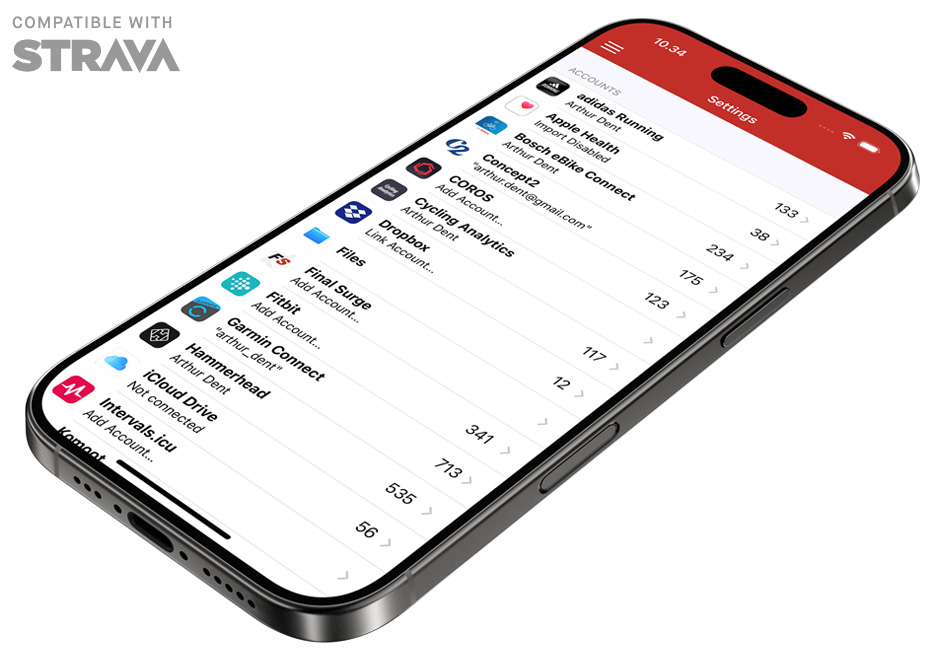
I went ahead and paid for RunGap's Swag Bag option (which is quite cheap) to enable the import and export of TrainingPeaks data to Apple Health, and back again.
Feeling excited that I may have found the missing link, I returned to the Apple Health app to view my workout data. I was interested to see Active Energy, Cycling Distance, and so on.
The data was not there. Ugh. Stuck again.
Frustrated, I researched more and learned that I had to first share a single activity in RunGap and then all of my data would start to sync between the connections. Aha!
A few seconds later, my workout data from TrainingPeaks showed up in Apple Health. No Apple Watch or Strava account required. RunGap to the rescue.
If this is also your problem, here's the full order of steps I followed to solve it.
There's a lot, but let's start and get this done.
- Go to Zwift.com or the Zwift Companion app.
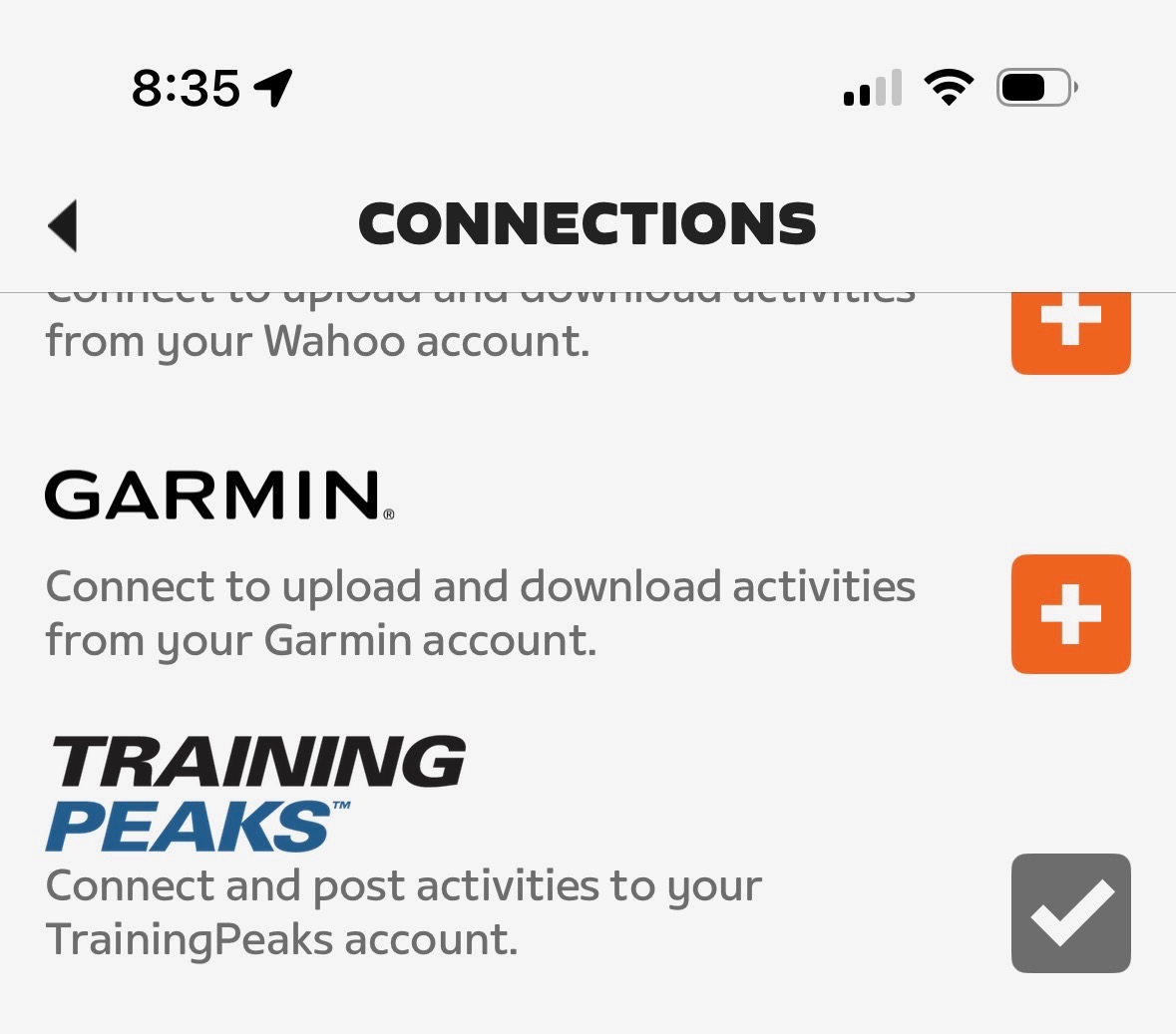
- For Zwift.com, go to Account > Connections. For the app, go More > Settings > Connections.
- Connect to TrainingPeaks and authorize the connection.
- Go to the Apple Health app on your iPhone and tap your picture.
- Go to Privacy > Apps and turn TrainingPeaks data on.
- Download and install RunGap from the App Store. Three cheers for niche software developers!
- In RunGap, tap the menu button on the left side and go to Tools > Accounts and Settings.
- Go to Apple Health and enable importing. The app will start importing activities from Apple Health. This can take a while if you have a lot.
- Go to TrainingPeaks and enable importing. The app will start importing activities from TrainingPeaks. Again, you may need to wait.
- Go back a step and then over to Tools > Swag Bag.
- Purchase the Swag Bag subscription that suits you.
- After the purchase is complete, go to Activities.
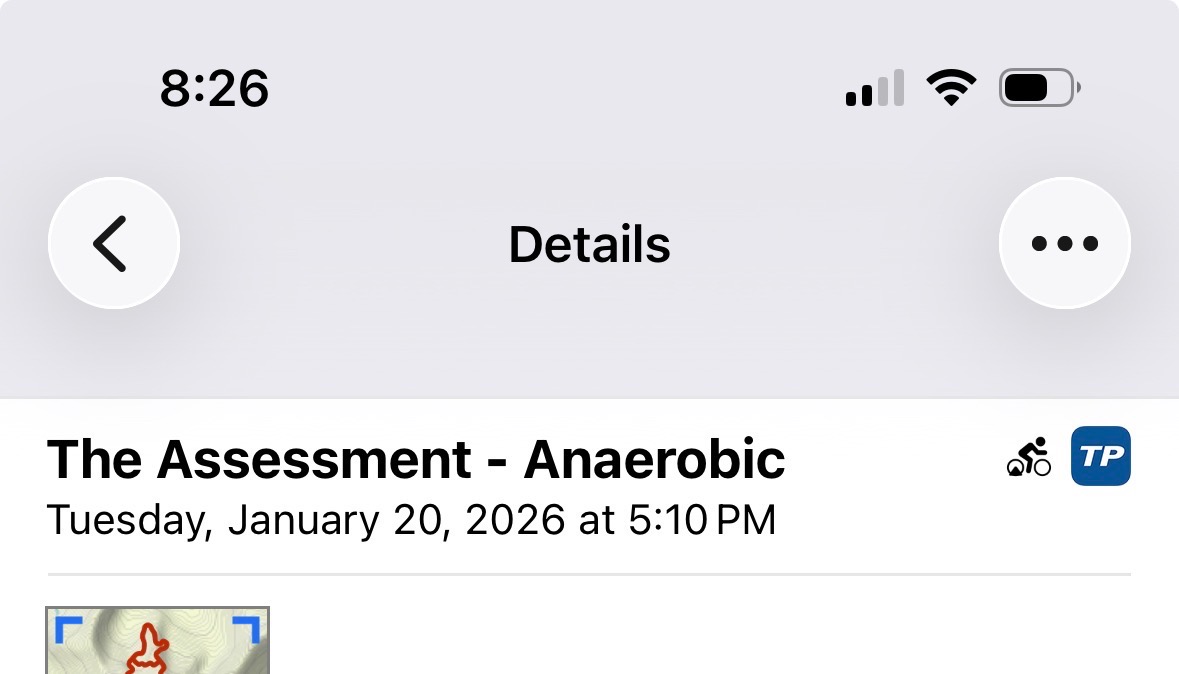
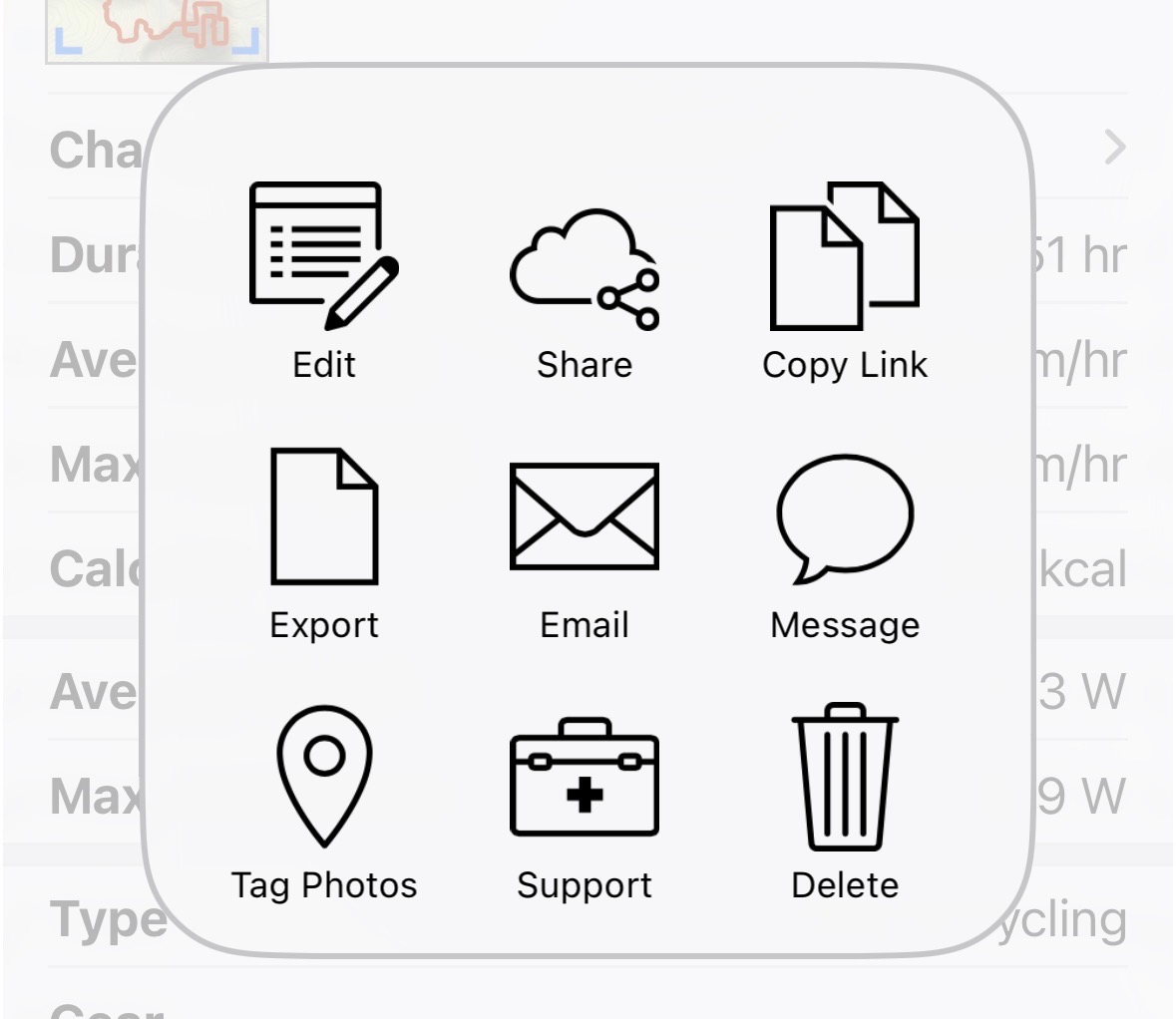
- Choose an activity and then tap the menu button on the top right side.
- Tap Share. A panel will open, Share Activity.
- Choose Apple Health and then save (checkmark).
- Leave the RunGap app and go back to your Apple Health app.
- Tap your picture in Apple Health. Go to Privacy > Apps and turn RunGap data on.
- Almost there! This next step may be different for you than me. If you want your TrainingPeaks data to show up on your Apple Health summary, then you'll need to customize your pins.
- Tap Edit and choose something to pin. I pin Active Energy and Workouts. You can also add Cycling Cadence, Cycling Distance and others as desired.
- Save your list and you'll be returned to Summary. Your data from TrainingPeaks will be there. Hooray!
So there you have it. I hope these instructions others out. Contact me if you have questions.
I'm off to do some soul crushing intervals.